In-Game Issues
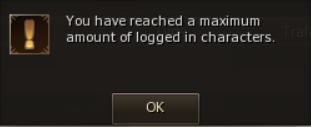
Maximum Characters Reached
Login with the last character you logged.
Eternal:
- I fixed it one time for my friend by logging his character and using Maria to teleport.
- Daily Server Restart at 8 am UTC helps too or logging from another device.
- If issue persists, open a ticket.
GMs in the past tried to kick the player, but that solution did not work.
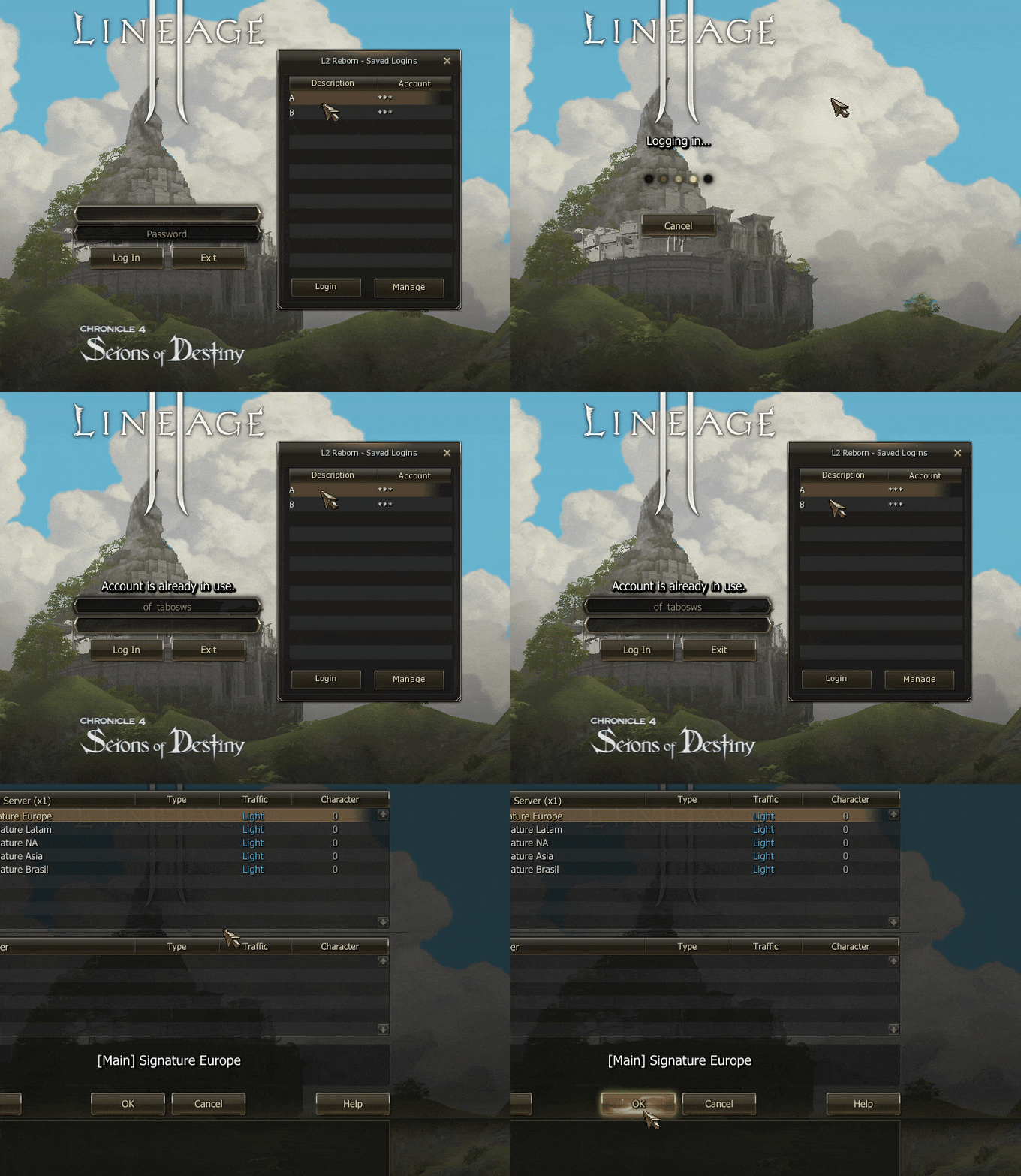
Is Server Down?
- Most likely not, maintenances where servers are down are announced in Discord News Channels and in-game.
- If you get invalid login info on login, try use Easy Login Manager (on bottom right) and copy paste your info
- If you get stuck on server selection try:
- Going back to login menu and choosing a new proxy each time.
- Not taking too long on server selection, you will need to go back to the login menu and login again.
- VPN.
- Keep in mind after server maintenances the NPCs might take a while to respawn.
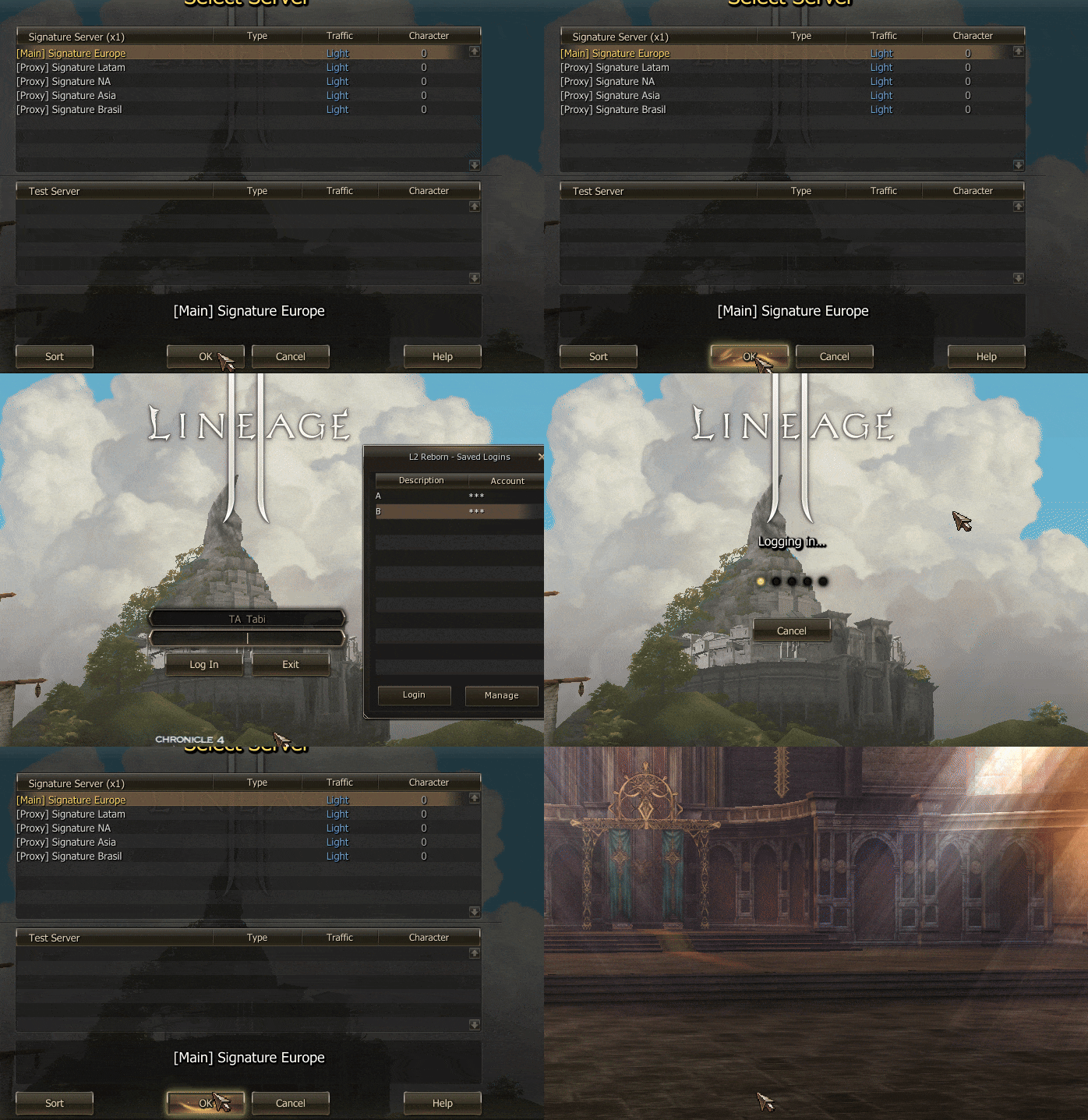
Nothing happens when I click on Character Create or Server Select and I use the laptop's mouse pad, how to fix it?
- If you take too long on server selection, you will need a fresh login to proceed or try another proxy.
- Use a desktop mouse instead, the laptop's mouse pad may be blocked.
- VPN might help as well.
How to Fix Lag and Disconnection Issues: A General Guide
Experiencing lag, disconnections, or high ping is often not a problem with your own internet, but with the path your data takes to the game's servers. The internet is a vast network of interconnected physical cables and routers, and damage or congestion on any part of that path can cause issues.
The most reliable solution for many is to use a VPN. A VPN can create a new, more stable "tunnel" for your data, bypassing the broken or congested part of the internet.
General Troubleshooting (Before Using a VPN)
- Try Different Network Connection: Switch to Ethernet Cable instead of WiFi or use Mobile Data temporarily.
- Check your own connection: Open CMD and type
ping -t google.com, if it shows high values, the problem is on your end. - Switch Proxies/Gateways: Try selecting a different proxy from server selection menu, keep in mind each server select requires a fresh login.
- Reset Your Network: Fully close the game client and then restart your router and PC. This can clear up local routing issues.
- Flush Your DNS: Open an Admin Command Prompt and type
ipconfig /flushdns. This clears your local DNS cache. - Change Your DNS: Try using a public DNS service like Cloudflare (
1.1.1.1,1.0.0.1) or Google (8.8.8.8,8.8.4.4). This can sometimes provide a more reliable path for domain lookups. - Check Your Firewall: Ensure your firewall or antivirus is not blocking the game. Add the game's main executable files to its exclusion list.
The Quick Fix: Using a VPN
- How it helps: A VPN reroutes your connection through a different set of servers, avoiding the problematic network hop that is causing packet loss and high latency.
- What to do:
- Choose a reputable VPN provider (many offer free trials).
- Connect to a VPN server that is geographically close to the game's data center. For example, if the game servers are in New York, connect to a New York VPN server.
- If one location doesn't work, try another nearby city or country.
- Always fully close your game before connecting or disconnecting the VPN.
Try these VPNs with free trial (if available):
How to Diagnose the Problem Yourself
You can confirm that your connection issues are due to a bad internet route using built-in Windows tools. This helps you decide if a VPN is the right solution.
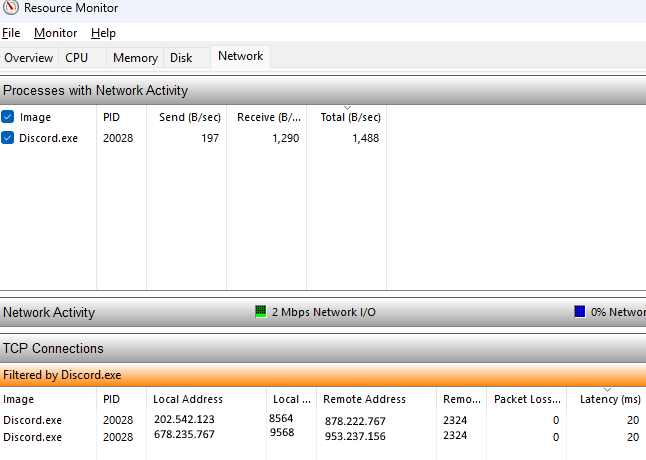
Step 1: Find the Game Server's IP Address
- Open the Resource Monitor (search for it in the Start Menu).
- Go to the Network tab.
- In the "TCP Connections" section, look for your game's process (e.g.,
YourGame.exe). - Note the Remote Address it's connected to. This is the game server's IP.
Step 2: Run a Continuous Ping (ping -t)
This test checks for packet loss and unstable latency.
- Open Command Prompt as Administrator.
- Type
ping -t [Server IP](e.g.,ping -t 123.456.789.123). The-tflag makes it run until you stop it. - Let it run for 30-60 seconds while you play or experience lag, then press Ctrl+C to stop it.
- Interpret the results:
- Good Connection: Consistent, low latency with no "Request timed out" messages.
- Bad Connection: You will see high latency, "Request timed out" messages, or a high "Packet loss" percentage at the end. This confirms the issue.
Step 3: Trace the Route (tracert)
This shows you the exact path your data takes and where the problem occurs.
- In Command Prompt, type
tracert [Server IP]. - The command lists every "hop" (router) between you and the server.
- Interpret the results: Look for a hop where the latency suddenly jumps very high (e.g., from 20ms to 250ms) or starts showing asterisks
* * *(meaning timeouts).- This hop is the likely culprit. The problem is with that specific router or network link, which is outside of your or the game developer's control.
Proving the VPN Fix:
- Run
tracertandping -twithout the VPN and note the high latency/packet loss. - Connect to your VPN.
- Run the same
ping -tcommand again. - If the VPN is working, you will see a significant drop in latency and the packet loss will disappear, proving it found a better route.
Camera Sensitivity
Fine-tune your DPI in your mouse software and Windows' Mouse Setting.
Tree Flickering
Put shader to off and reflections to sky instead of all.
Thanks @Csilk
Unresponsive Buttons Fix
This solution fixes the buttons not working for Monster Data / Spoil / Reborn Store / Easy Login Manager etc..
- Close L2
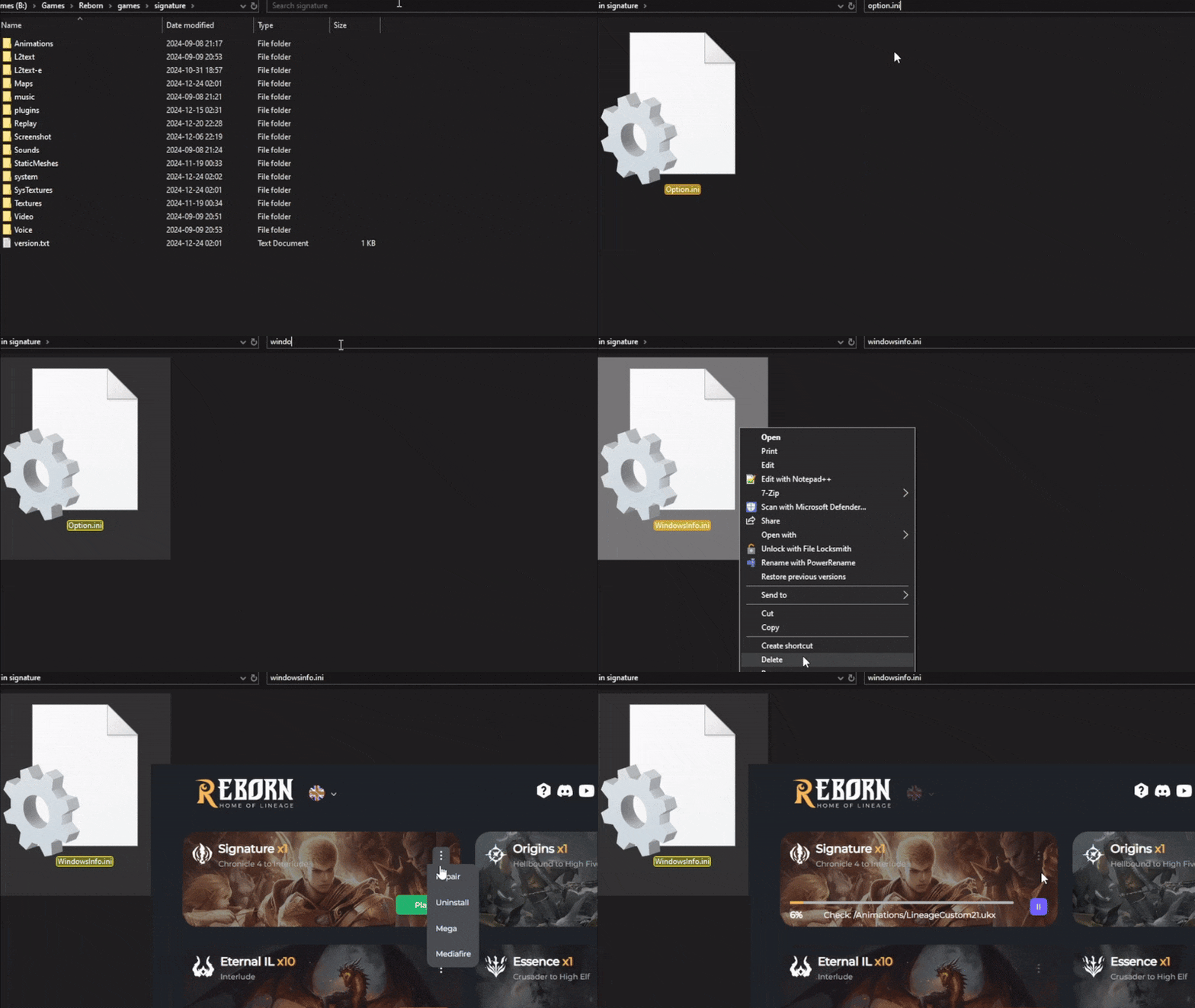
- Delete
windowsinfo.iniandoption.iniand repair.- They're found in:
\Reborn\games\signature\system\
- They're found in:
- OR try make your l2 window really small and go full screen with alt+enter.
Some window names in windowsinfo.ini are named intuitively so you can find
whatever value you feel comfortable in changing it too.
Small Texts and Buttons on 4k Monitor
1st option
Enter fullscreen mode, and lower resolution.
2nd option
You will have to download and extract NirCMD.
Make sure to adjust the path of your executable and path to nircmd.exe in the notepad. Save it as .bat file and run it.
Copy paste the example .bat file
3rd option
- Open regedit and navigate to:
Computer\HKEY_CURRENT_USER\Software\Microsoft\Windows NT\CurrentVersion\AppCompatFlags\Layers
- Delete "
l2.bin" and "L2.exe" keys with the values "HIGHDPIAWARE" - Before making any changes to the registry, back it up or create a system recovery point.
- Thanks @Csilk
Character Selection Error

-
Your account has been suspended due to suspected abusive gameplay. -
Create Character button is not greyed out, you can press it and the message will disappear.
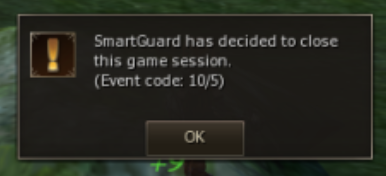
Event Code 10/5 or 39/1
This happens when there is either an interruption in your connection and/or an interruption to the SmartGuard service.
Add Reborn files (l2.exe) and folders are added as exceptions/exclusions in your antivirus and firewall settings.
Power-cycle your Modem/Router/Switch and PC. If that doesn't work: Save l2reborn_easylogin.ini to Desktop, Delete the System folder & do Client Repair.
Critical Error on Server Selection
-
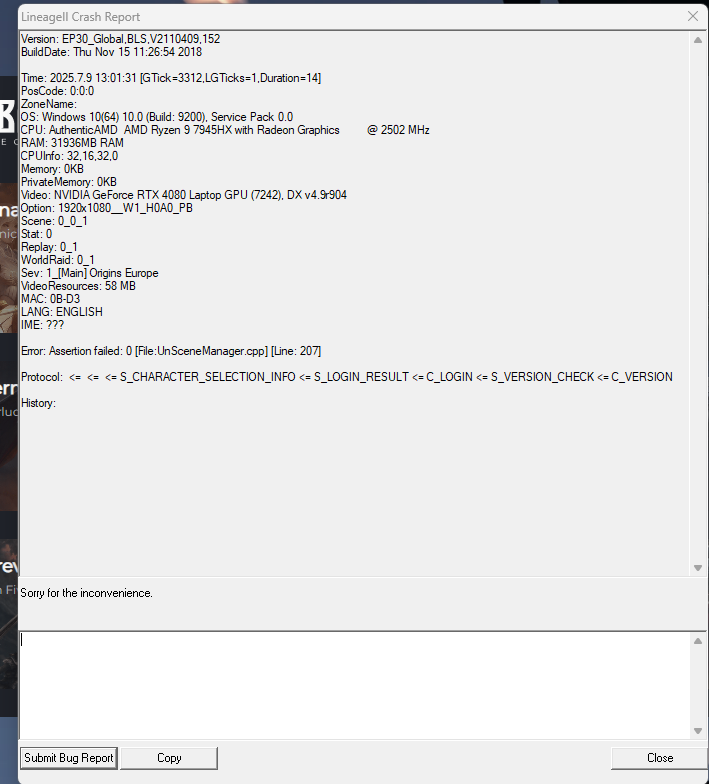
Protocol: <- <- S_CHARACTER_SELECTION_INFO <- S_LOGIN_RESULT <- C_LOGIN <- S_VERSION_CHECK <- C_VERSION -
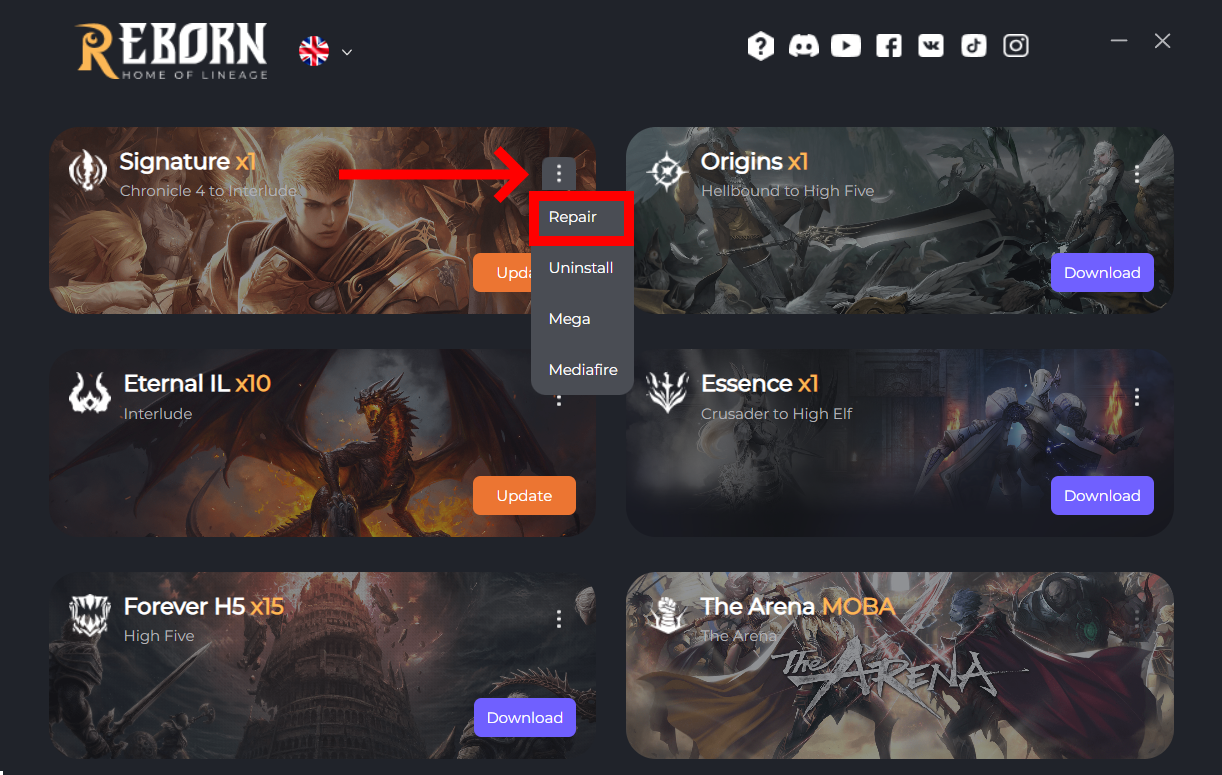
Your game is outdated → Run the "Repair" option in your game launcher.
- Server is slow to update → If others on Discord report the same issue, wait for the GMs to fix it.
Still having Trouble?
- Check the Discord for updates.
- If only you are affected, repairing the client should help!
-
-
Repairing the Game
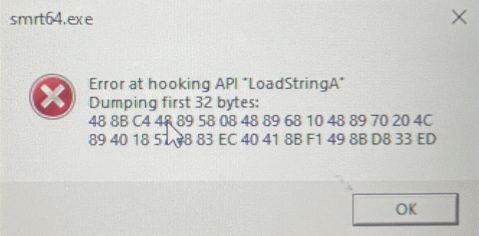
smrt64.exe Error
Restart your PC. Error at hooking API ...
Keep crashing after 5 minutes in-game and I have a 12th gen Intel
- Download Process Lasso
- Launch Game, find
l2.bin - Right click on it > CPU affinity > Always > Select CPU affinity > Select CPU 0,2,4,6
- Launch Game, find
Or disabling Intel Hyper-Threading in BIOS
How to increase performance?
Thanks @Aline
🔴 BIOS Settings - AMD CPUs (Ryzen)
Recommended BIOS settings
- SMT (Simultaneous Multithreading): Disable
- Global C-State Control: Disable
- CPPC / Preferred Cores: Disable (if available)
- Power Supply Idle Control: Typical Current Idle
🔵 Bios Settings - Intel CPUs
For all Intel CPUs, recommended BIOS settings
- Hyper-Threading: Disable
- CPU C-States: Limit to C0 / C1
- SpeedStep / Speed Shift: Disable or set to Max Performance
Intel 12th / 13th / 14th Gen (P-cores + E-cores)
- E-Cores: Disable
- Or enable Legacy Game Compatibility Mode
- Or set Active E-Cores = 0
🟢 Windows Settings
- Power Plan: High Performance
- Do not use “Balanced”
- Make a clean GPU driver reinstall, using DDU. You can use this guide with Step 3
Notes
- This is not overclocking, there is no physical risk for the CPU
- Temperatures and power usage may increase
- BIOS names vary by motherboard vendor